 IntentOS
How to make YouTube distraction-free
Updated 2026-11-29 · Desktop YouTube in a web browser
YouTube is a great search engine for learning and a very good machine for wasting an evening. The trick is to keep the first and switch off the second. Here's what works, starting with free settings that need no extension.
Where the distraction comes from
Almost all unplanned viewing starts from one of five places: the home feed, the Shorts shelf and feed, the related videos sidebar, end screens, and autoplay. Search results and your subscriptions are rarely the problem. Deal with those five and YouTube becomes a tool you open on purpose.
1. Empty the home feed (built in)
YouTube's help center says that if you delete and turn off your watch history, recommendations on the home page are removed. You're left with the search bar and the menu.
- Open YouTube History in My Activity, choose Delete and pick a time range ("All time" for a clean slate).
- Open the Controls and Turn off YouTube History.
Trade-off: just pausing history while keeping a long history may not empty the feed. You also lose "continue watching" and history-based suggestions everywhere, and deleting history also deletes search history for that time range. Source: YouTube Help: manage your watch history.
2. Turn off autoplay (built in)
On any watch page, click the Autoplay switch at the bottom of the player. The setting is per device, so set it on each browser you use (YouTube Help).
3. Train recommendations (built in)
Next to a recommended video, open the ⋮ menu and choose Not interested or Don't recommend channel. This reduces specific rabbit holes but doesn't remove the feed (YouTube Help).
4. Limit Shorts
There's no desktop setting that turns Shorts off for an adult account. In the YouTube mobile app you can set a Shorts feed limit (You → Settings → Time management), but it's a reminder you can dismiss. See How to block YouTube Shorts for every option.
5. Use search and subscriptions as your entry points
Bookmark youtube.com/feed/subscriptions instead of the home page, and go to YouTube with a search already in mind. You can type a search straight into Chrome's address bar after adding YouTube as a site search (Settings → Search engine → Manage search engines and site search).
6. When settings aren't enough: an extension
Built-in settings don't hide the related-videos sidebar or end screens, and the history trick costs you your history. Browser extensions can hide those elements directly:
- Always-on YouTube cleanup, such as Unhook, hides chosen page elements permanently. See IntentOS vs Unhook.
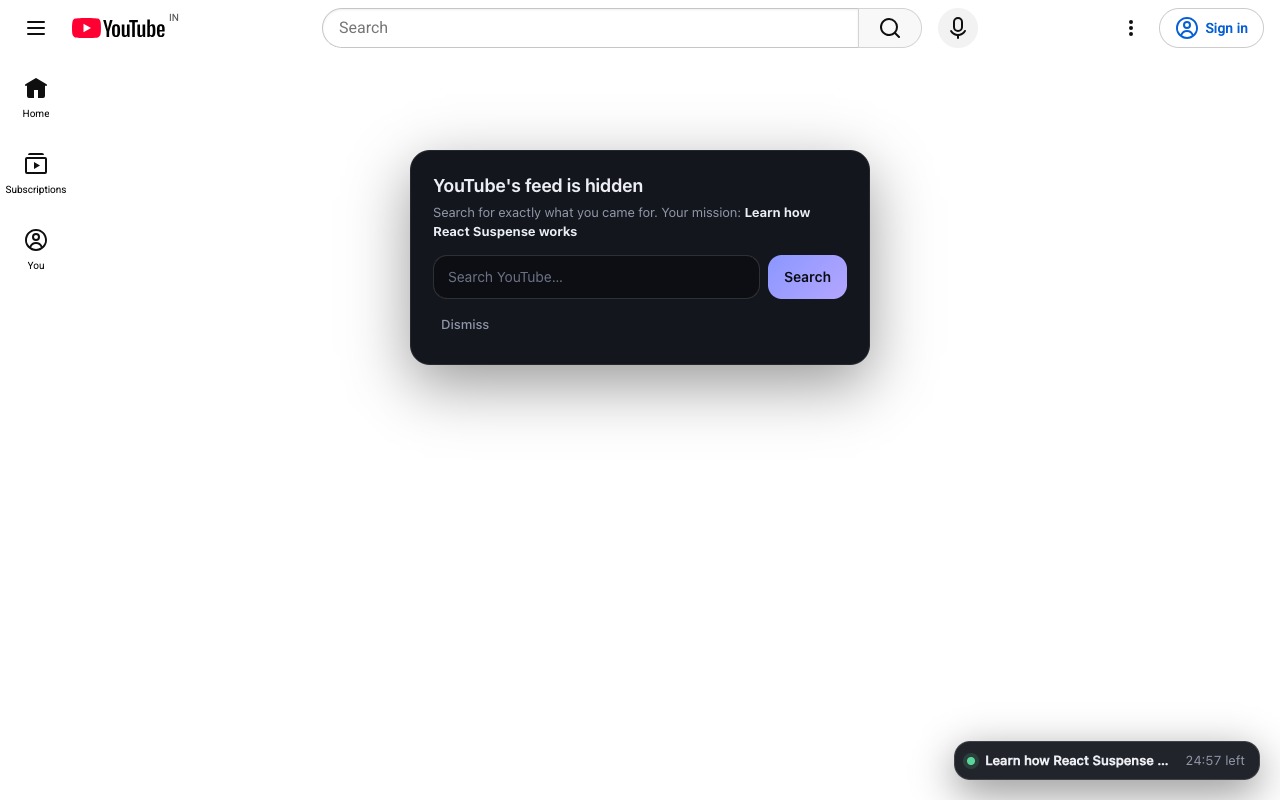
- Intention-first sessions, such as IntentOS, ask what you're here to do, then hide the home feed, Shorts, related videos and end screens for a 10–60 minute mission. Search and the video you opened keep working.
A simple routine that works
- Before opening YouTube, write down (or tell your extension) what you're looking for.
- Give it a time box: 10 minutes for a quick answer, 25–45 for a tutorial.
- When time's up, ask yourself honestly: did I get what I came for? If not, decide on purpose whether to continue.
Limitations to know
- Everything above is for YouTube in a desktop browser. Chrome on phones and tablets doesn't support extensions.
- YouTube changes its layout often. Any extension that hides page elements may briefly miss something after an update.